Part 1: Data Extraction
1. Form Trigger Node
Objective
Within the Onboarding Workflow created in the previous step, we will now add the initial trigger to capture the candidate's CV and Start Date
Node Configuration
| Field | Description |
|---|---|
| Node Type | Form Trigger |
| Node Name | CV Submission Form |
| Purpose | Capture candidate CV |
| Inputs | • File upload from user • Start Date |
| Outputs | Pass CV file to AI Agent node |
Steps
- Add a Form Trigger node
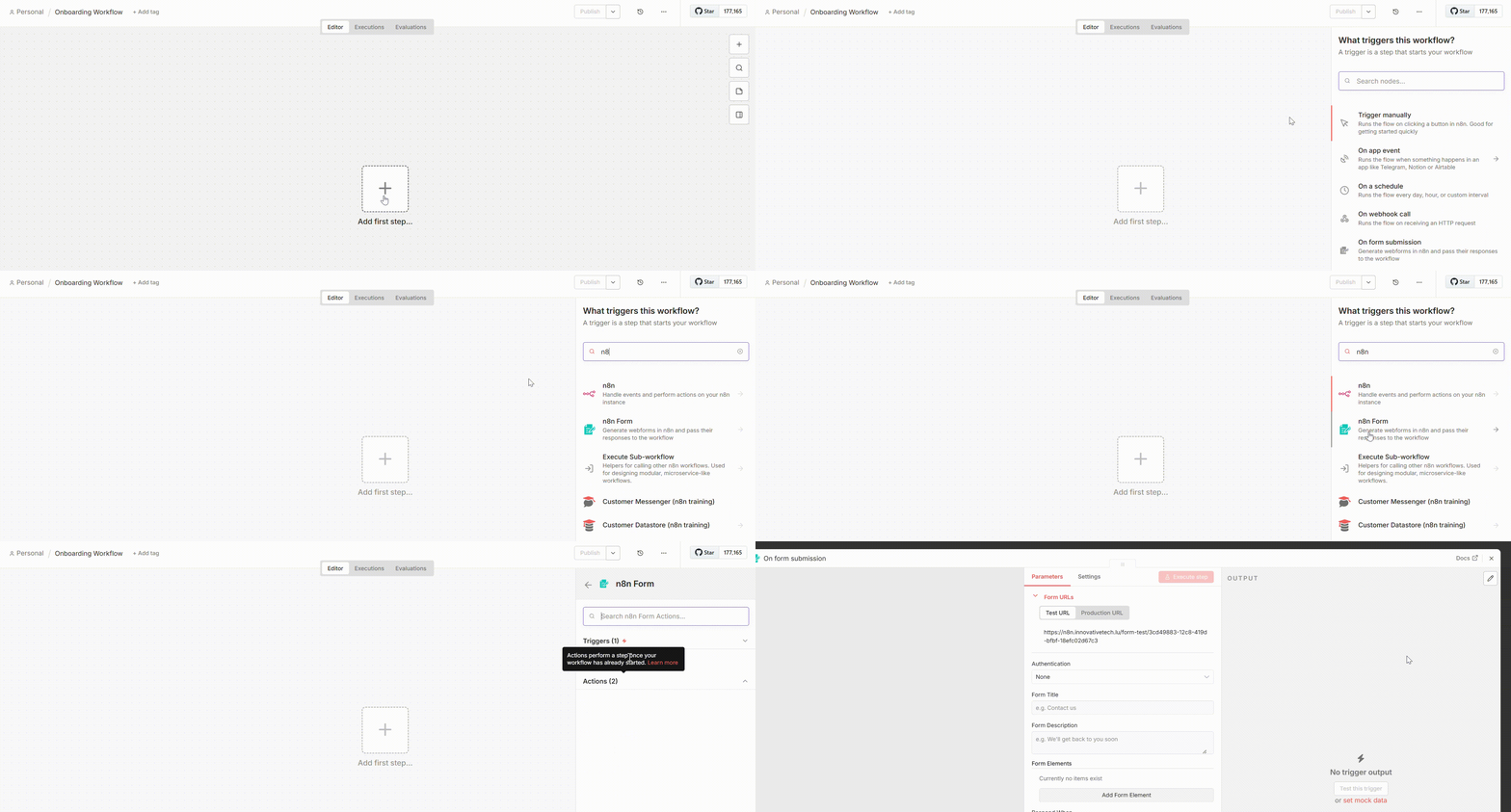
-
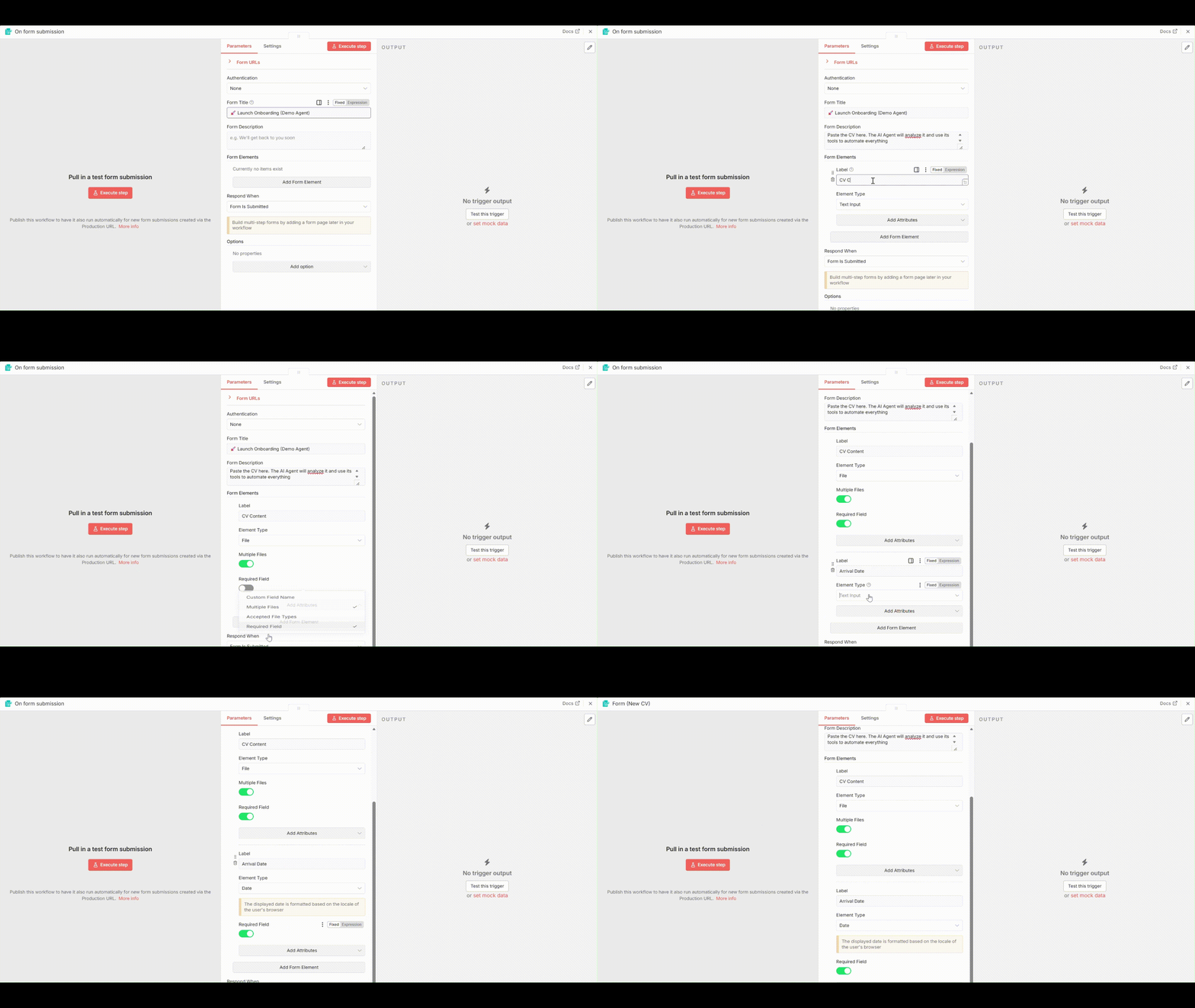
Configure fields
- Add Form Title: 🚀 Launch Onboarding (Demo Agent)
- Form Description: Paste the CV here. The AI Agent will analyze it and use its tools to automate everything
- Add Form Element
-
Add Field
- Type: File
- Name: CV Content
- Multiple Files
- Required Field
-
Add Field
- Type: Date
- Name: Arrival Date
- Required Field
-
Rename the form to Form (New CV)
2. Extract from PDF Node
Objective Extract raw text content from the uploaded CV (PDF file) to prepare it for AI analysis.
Steps
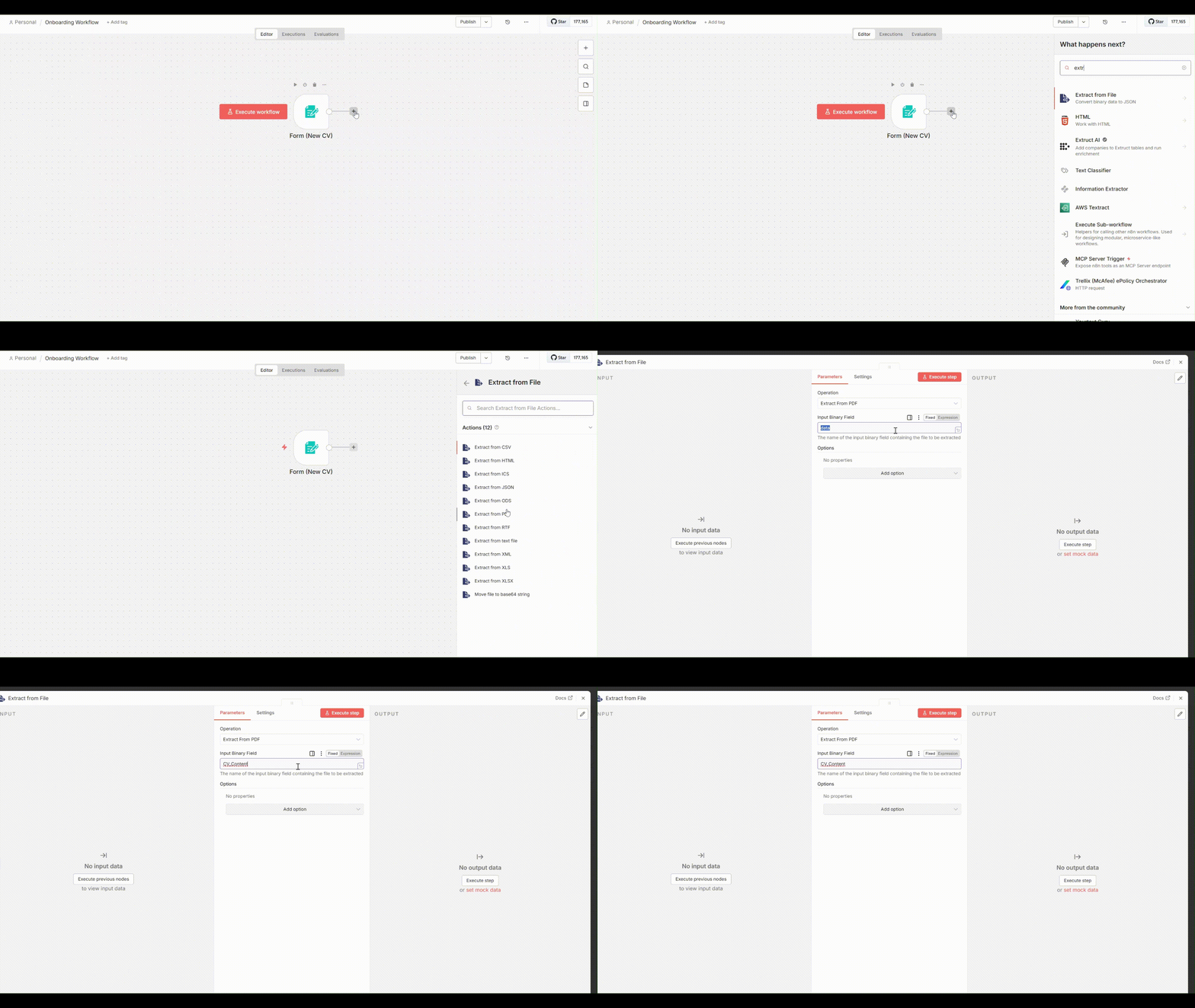
- Click the "+" button after the Form Trigger node.
- Search for Extract from file > Extract from PDF
- Select the node and add it to the workflow
- In the configuration panel: Set Binary Property to: CV_Content
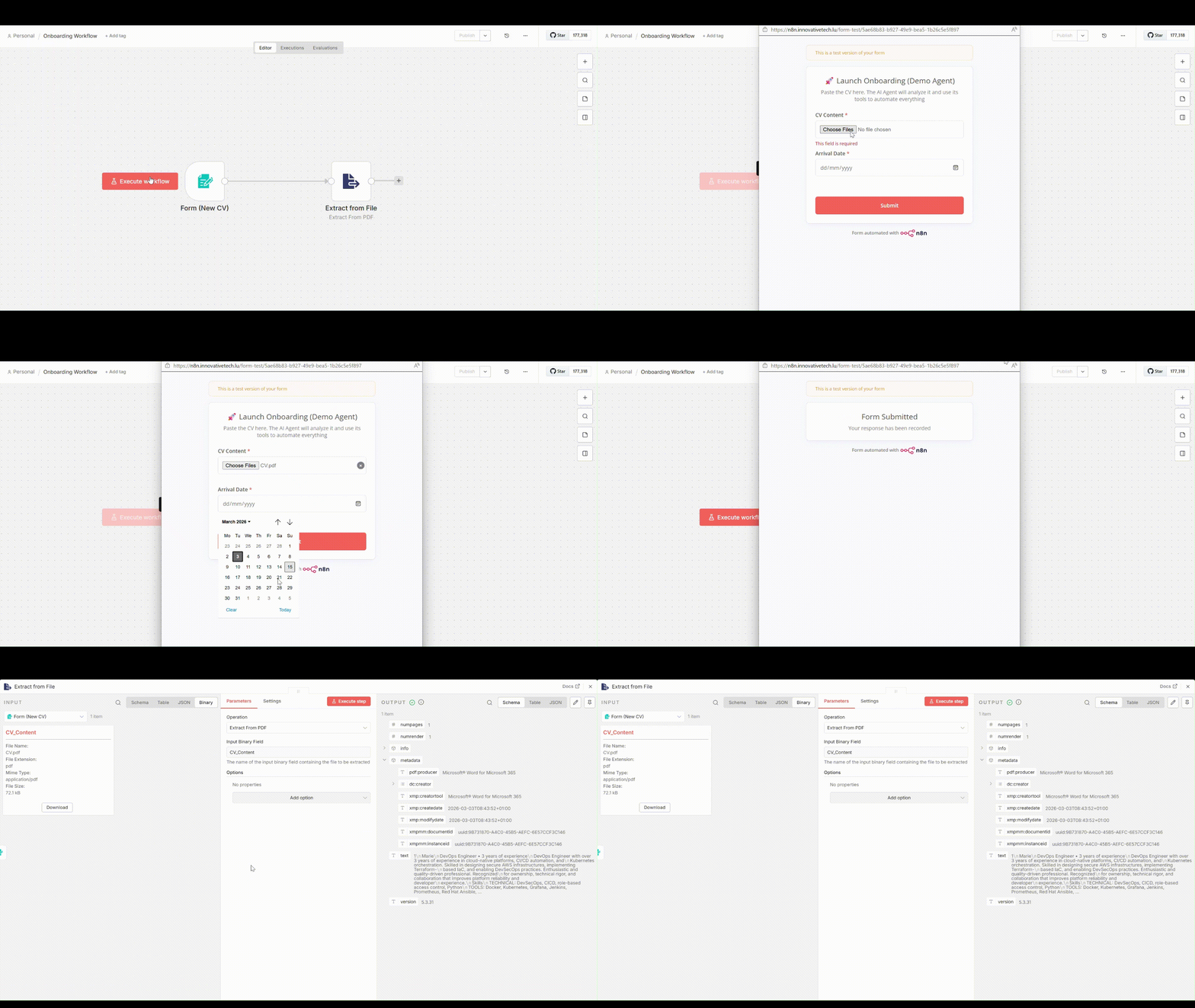
Workflow Ready for testing
Once the n8n Form Trigger and Extract from PDF nodes are configured:
- Upload a sample CV (PDF format)
- Enter a valid Start Date.
- Submit the form to trigger the workflow.
Expected Output
After submission:
- The Form Trigger captures the CV file (binary format) and the provided Start Date
- The Extract from PDF node, converts the PDF into readable plain text and outputs the full textual content of the CV