Part 3: Executions & Notifications
Objective
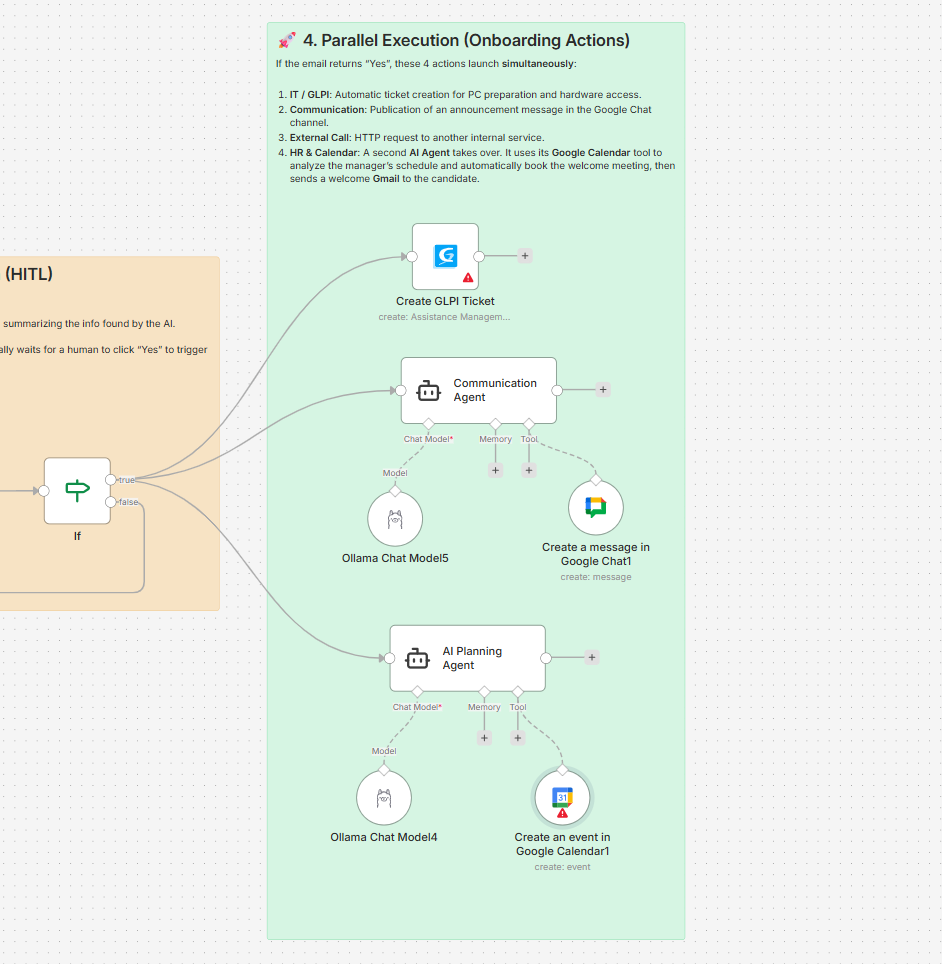
Once the approval decision is Yes, the workflow automatically triggers multiple onboarding actions simultaneously to ensure a smooth and fully automated employee onboarding process.
Description
If the IF Node = Approved, the workflow branches into three parallel automation streams:
- IT preparation (GLPI ticket creation)
- Internal communication (Welcome announcement)
- Meeting planning and scheduling
1. GLPI Ticket Creation (IT Preparation)
Description
Automatically creates an IT ticket in GLPI for
- Laptop preparation
- Account provisioning
- Hardware and access configuration
Steps
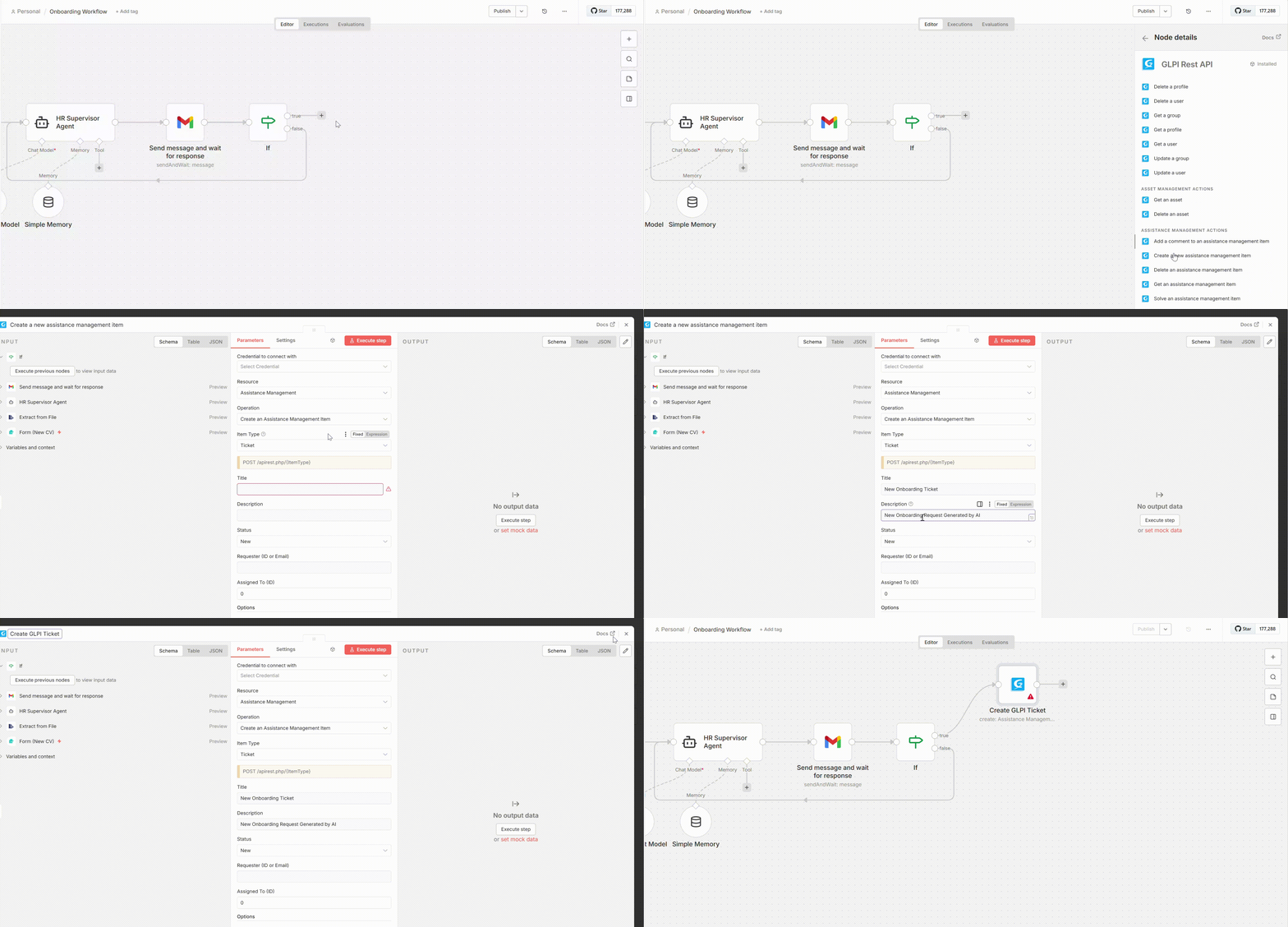
- Add a GLPI node
- Connect it to the True path of the IF node
- Configure
- Add a title: New Onboarding Ticket
- Add a description: New Onboarding Request Generated by AI
- Rename the node name: Create GLPI Ticket
2. AI Communication Agent (Welcome Announcement)
Description
An AI Communication Agent generates and sends a professional welcome message announcing the arrival of the new colleague.
The message is automatically posted via Google Chat.
The announcement includes:
- Candidate Name
- Role / Team
- Start Date
- Welcome message
Steps
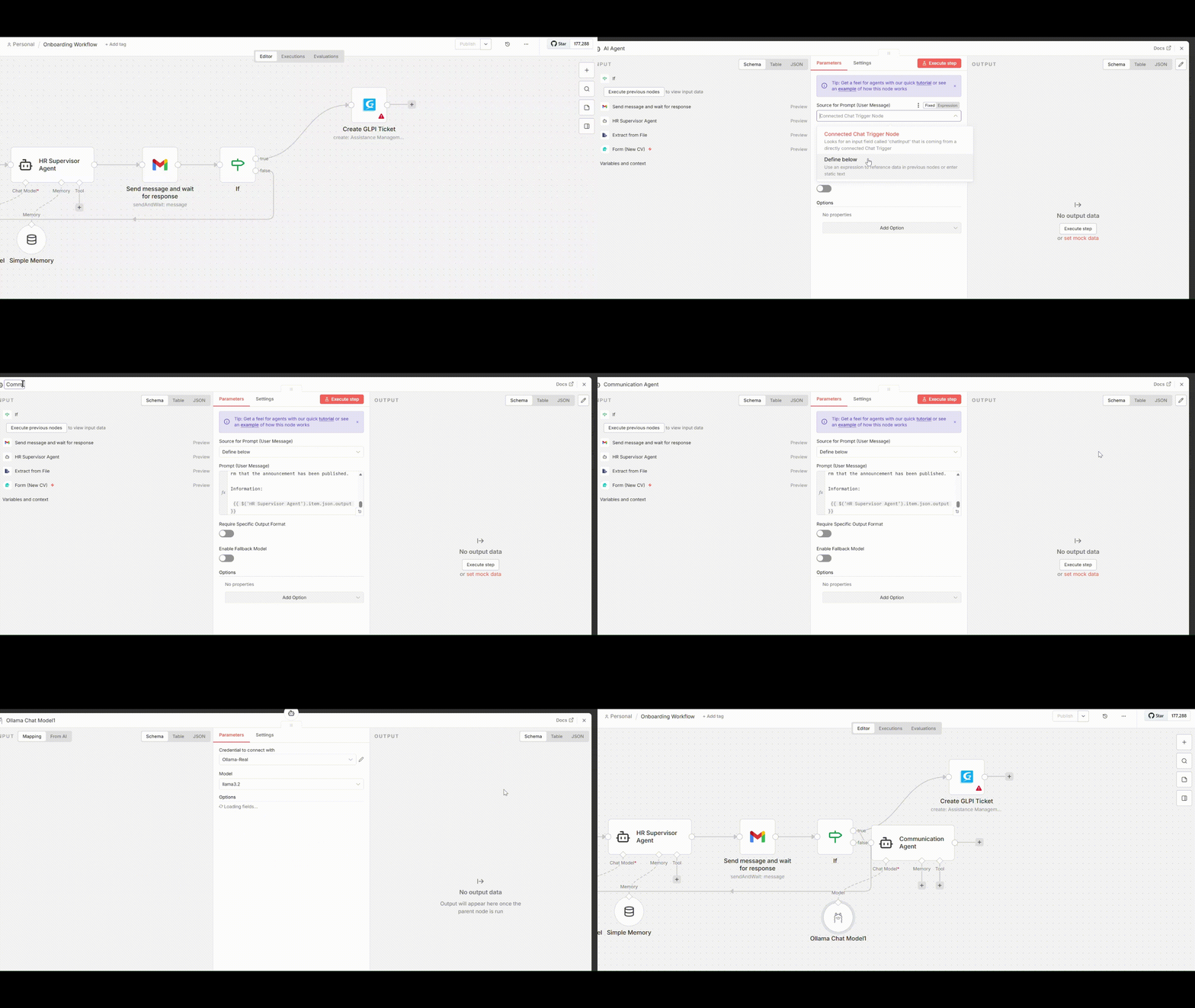
- Add an AI Agent Node (Communication Agent)
- Source for Prompt : Define below
- Add user prompt to generate welcome announcement
You are the Internal Communication Expert at Devoteam. Your role is to announce the arrival of a new collaborator to the entire company.

Based on the CV information provided to you, write a warm, professional, and enthusiastic welcome message.

WRITING RULES:
1. The message must include:
   - Candidate's First and Last Name.
   - Their future role or the team they will join.
   - Future Manager's name (if available).
   - Arrival date.
2. Use Markdown formatting (Bold for names, bulleted lists if needed).
3. Add relevant emojis (🚀, 👋, 🎉, etc.) to make the message dynamic.

MANDATORY ACTION:
You MUST use the 'Create a message in Google Chat' tool to publish this message.
Send the formatted text directly to the tool without asking questions. Once sent, simply confirm that the announcement has been published.

Information:

 {{ $('HR Supervisor Agent').item.json.output }}
- Rename the Agent to Communication Agent
- Add a Model: OLLAMA
- Choose Model: mistral-namo:latest
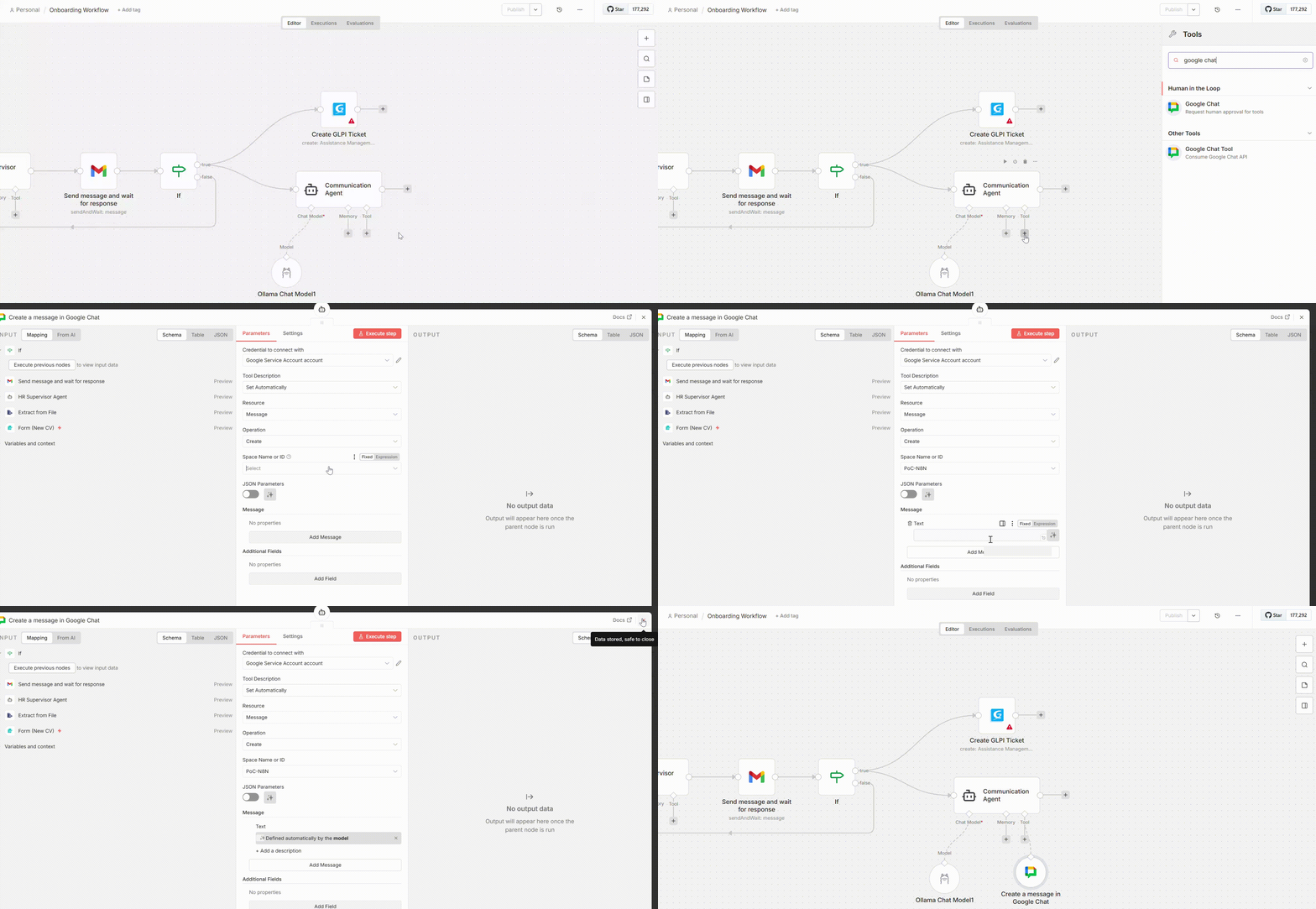
- Connect output to Google Chat Node
- Configure Google Chat
- Select Space Name
- Add a message and let the model define the parameter
3. AI Planning Agent (Welcome Meeting Scheduling)
Description
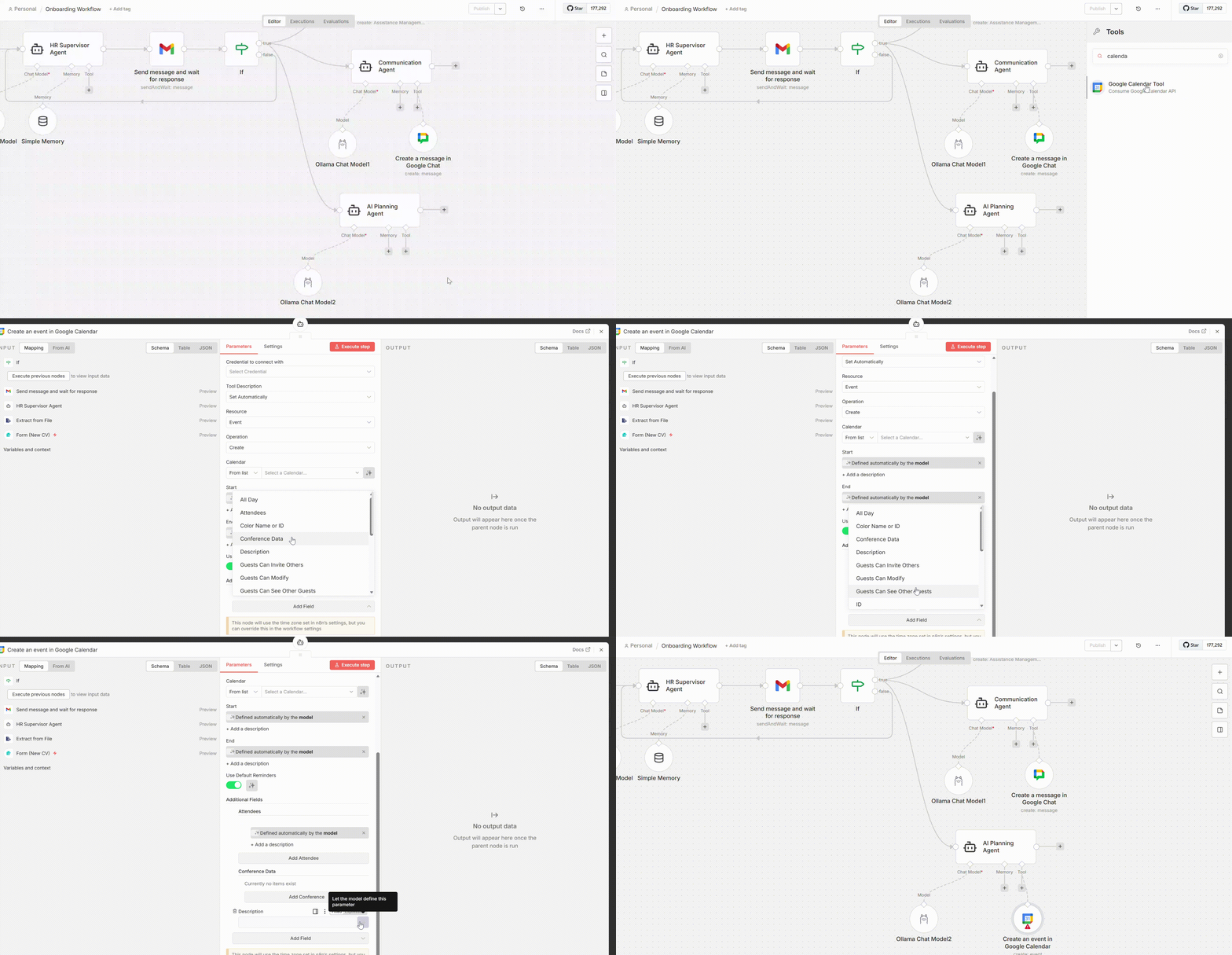
The AI Planning Agent organizes the Welcome Meeting automatically using Google Calendar
- Checks manager availability
- Searches for first available 30-minute morning slot
- Avoids weekends
- Books meeting only after arrival date
Steps
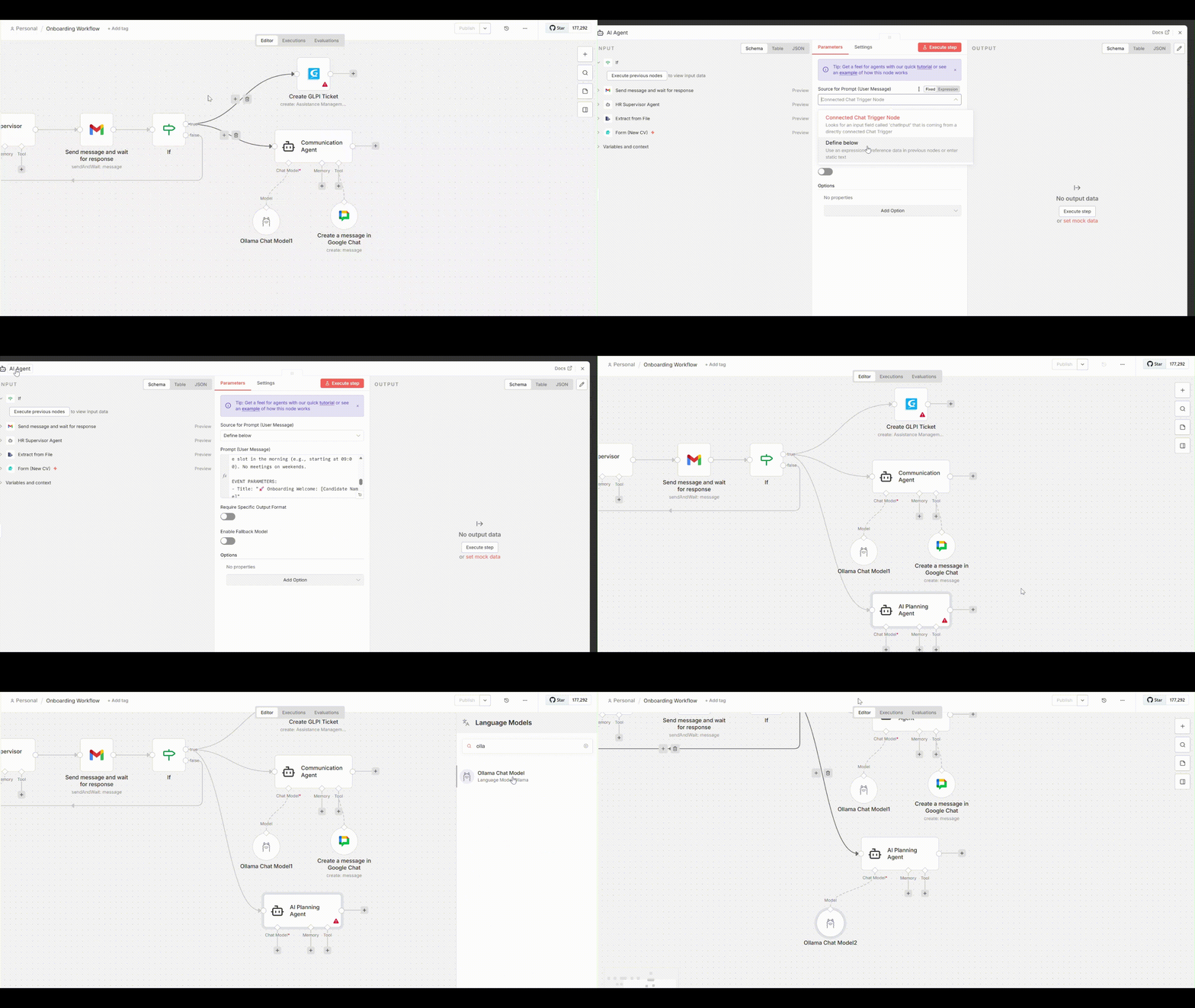
- Add an AI Agent Node (Planning Agent).
- Source for Prompt : Define below
- Add user prompt
You are the HR Planning Expert at Devoteam. Your goal is to organize the Welcome Meeting.

⚠️ CRITICAL RULE FOR THE CALENDAR TOOL ⚠️
When you use the 'Create an event in Google Calendar' tool, you MUST obey these formatting rules for the parameters, otherwise the system will crash:
- 'attendees' field: It MUST contain STRICTLY AND ONLY a valid email address (e.g., jean@company_forgai.lu). Do NOT add ANY text, ANY names, or ANY explanatory sentences in this field.

PLANNING CONSTRAINTS & AVAILABILITY CHECK:
1. The meeting MUST take place AFTER the provided arrival date: {{ $('Form (New CV)').item.json['arrival date'] }}.
2. CONFLICT CHECK: Before booking, you MUST check the manager's calendar for the chosen date and time. If there is already a meeting planned at that moment, you cannot book it. You must check the next available time until you find a completely free 30-minute slot.
3. Use the 'Europe/Luxembourg' timezone
4. Search for the first available 30-minute free slot in the morning (e.g., starting at 09:00). No meetings on weekends.

EVENT PARAMETERS:
- Title: "🚀 Onboarding Welcome: [Candidate Name]"
- Description: "Welcome meeting to launch the onboarding process."
- Data to extract the email: {{ $('HR Supervisor Agent').item.json.output }}

Execute the tool immediately. Do not write any conversational text before calling the tool.- Rename the Agent to AI Planning Agent
- Add a Model: OLLAMA
- Choose Model: mistral-namo:latest
- Connect Google Calendar to the Agent
Workflow Ready for Testing
Once the IF Node returns True (Approved)
- GLPI ticket is created
- Welcome message is posted in Google Chat
- Welcome meeting is scheduled in Google Calendar